
Google Maps Go
Google LLCTravel & Local
4.16.80K Reviews
- Version
- Varies With Device
- Installs
- 1.00B
- Age Rating
- Everyone
Screenshots
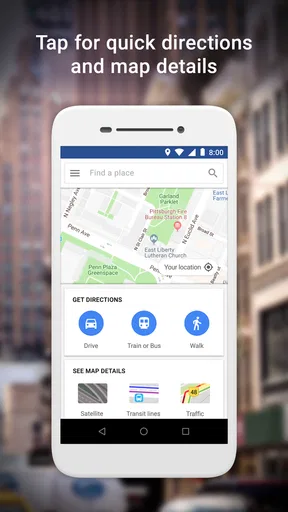
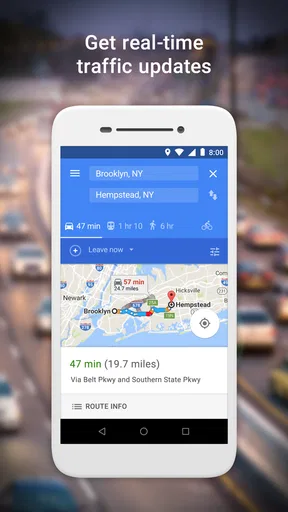
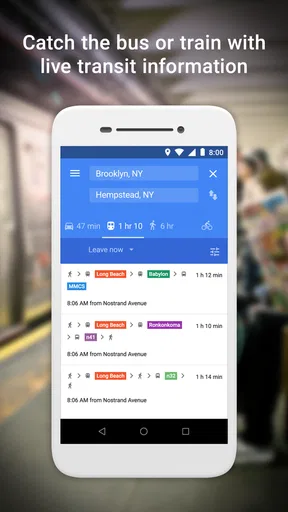
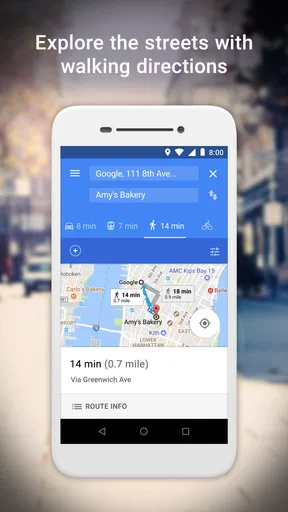
Our Review of Google Maps Go
 Analysis by Appyee
If you’re opening Google Maps Go for the first time, it helps to think of it as a focused way to look up places and plan a route, rather than a complete replacement for every tool in the full Google Maps experience. I like that the basic job is easy to understand: search for a destination, check the route, and decide how to get there. For a first trip across town, that is often all I need.
It is a free travel and local app from Google LLC, and its audience is broad: the content rating is Everyone. Its average rating is 4.1 from around 356,000 ratings, with roughly 6,800 written reviews, and it has over 1 billion installs. Those figures suggest that many people use it, but the more useful question is whether its lighter approach fits your phone and your habits.
What to expect when you open it
The main appeal is restraint. Instead of putting every mapping tool in front of you, Google Maps Go keeps attention on finding places and getting directions. I would consider it when storage or device responsiveness matters more to me than having the broadest possible feature set. If you already use the full Maps app and rely on its extra tools, the lighter option may feel like a compromise rather than an upgrade.
One practical point is that a map app depends on more than its own interface. Your connection, location settings, and familiarity with the area all affect how smoothly a trip goes. I treat the route as guidance, not as a substitute for checking street signs or noticing when a road is closed. That habit matters especially when I’m walking somewhere unfamiliar or arriving in a busy station district.
What’s the Deal with Google Maps Go?
Alright, let’s dive right into it. Google Maps Go is essentially a streamlined version of the full-fledged Google Maps app. It’s designed to be super lightweight, which means it’s perfect for older phones or those with limited storage space. You get all the core functionalities without the extra bloat that might slow down your device. It’s like having the essentials packed neatly in a smaller suitcase — practical and efficient.
First setup: make the first search useful
When I’m setting up a navigation app for the first time, I start with one destination I actually know, such as a nearby shop or transit stop. I search for it, open the result, and check that the place name and location match what I expected. This small test is more useful than immediately trusting an unfamiliar address: similar business names or a pin on the wrong side of a large block can send you in the wrong direction.
Then I check the route options before leaving. For a short walk, I look at the start and end points and keep an eye out for turns that seem odd. For public transport, I compare the suggested journey with the stop or station I can see around me. A route is only helpful when it makes sense in the real world, so I don’t wait until I’m already rushing to notice that I selected a similarly named destination across town.
Performance and User Experience
First things first, let’s talk performance. This app is snappy! I was impressed by how quickly it loaded and responded, even on my old smartphone. The interface is clean and intuitive, which is a huge plus for anyone who just wants to get from point A to point B without fussing around.
The app supports real-time traffic updates, directions, and even public transportation schedules. It’s got you covered whether you’re driving, walking, or catching the bus. The turn-by-turn directions are clear and concise, and I didn’t experience any lag while using it.
Your first successful trip, and a good backup habit
For a low-stress first outing, I’d choose a familiar destination a few stops or streets away. Search for the place, check the route, and begin when you have time to pause and look at the screen safely. If you’re driving, set things up before moving and follow local rules; don’t handle the phone while the vehicle is in motion. If you’re walking, keep the phone tucked away between checks rather than staring at it at every corner.
I also like to note a landmark near the destination before I set off. A café entrance, a station exit, or a recognizable intersection can be easier to spot than a street number when you arrive. This is a simple way to use the map without treating its blue route line as the whole story, and it helps if GPS positioning appears imprecise among tall buildings.
Features That Stand Out
Despite being a lighter version, Google Maps Go doesn’t skimp on features. You still get access to location sharing, which is perfect for meeting up with friends or letting family know where you are. The app also supports voice navigation, although you’ll need to install a separate app for that. It’s a small compromise considering the space you save.
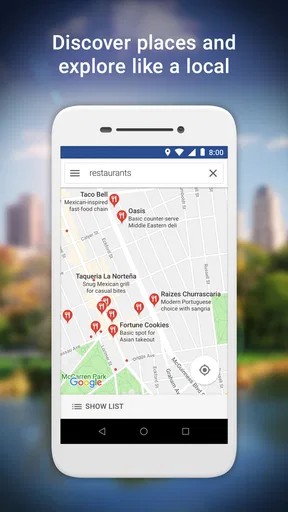
Another thing I really liked is how easy it is to switch between map views. Whether you prefer the classic map, satellite imagery, or terrain view, it’s all just a tap away. Plus, the search feature is just as robust as the full app, so finding cafes, gas stations, or landmarks is a breeze.
Search more carefully than you think you need to
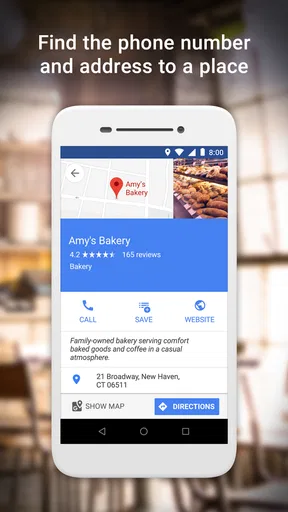
A useful habit is to search by both the place name and the surrounding area when a destination could have several branches. Before tapping directions, I check the address or map position and make sure it is the branch I intend to visit. This takes a moment but can prevent the familiar mistake of navigating to the right business in the wrong neighborhood.
For a meeting, I use location sharing only when it genuinely helps the other person coordinate. A message with a clear meeting point can be simpler if the other person does not need to follow my journey. If sharing is useful, I check what I’m sending and to whom before I start. That keeps a convenient feature from becoming an automatic step in every trip.
Who Will Love This App?
In my opinion, this app is perfect for anyone who needs a no-frills navigation tool that won’t eat up too much storage. If you’re traveling and relying on an older or less powerful device, Google Maps Go could be a lifesaver.
It’s also great for users who prefer simplicity over the myriad of features they’ll never use. The app strips away the extras while keeping the essentials front and center, making it an ideal choice for those who value efficiency.
Where it fits among map apps
Compared with using a browser search or a basic directions app, Maps Go gives me a more map-centered way to explore nearby places and plan a journey. Compared with the full Google Maps app, its advantage is the leaner experience; the trade-off is that people who depend on more advanced map tools may find themselves switching back. I would not choose it just because “lighter” sounds better. I’d choose it if the everyday tasks I need are available and I value a simpler footprint.
It is also not my first pick for a trip where I expect to be offline. The lack of offline maps is a real limitation if mobile coverage is unreliable, so I would plan another way to navigate before leaving rather than assume a route will remain available without a connection. A dedicated offline navigation option may suit that particular journey better, while Maps Go can still be handy for connected city errands.
A Few Things to Keep in Mind
Now, it’s not all rainbows and butterflies. There are a few limitations to be aware of. For instance, offline maps aren’t available, which might be a drawback if you’re heading somewhere with spotty internet coverage. Also, while the app is great for basic navigation, it doesn’t support some of the more advanced features found in the full version.
But honestly, if you’re looking for a lightweight alternative that gets the job done without any drama, these are minor trade-offs.
Common confusion before you head out
One point that can catch first-time users off guard is voice navigation. The app supports it, but a separate app is needed for that part, so I would check the setup before relying on spoken guidance for a drive. If you prefer to follow directions visually, you can still plan your route, but it is worth knowing the distinction before you leave.
Another question is whether this is suitable for a place with weak service. Because offline maps are not available, I would not count on it as my only navigation aid there. If a trip crosses a remote stretch, I plan ahead with an alternative that works offline or keep a dependable paper or locally saved reference. For everyday connected travel, that limitation may not matter; for a long rural drive, it can change the decision.
Final Thoughts
All things considered, Google Maps Go is a fantastic option for anyone in need of a reliable, lightweight navigational app. It’s got the core features you need, packaged in a way that’s easy on your device. Whether you’re navigating through a bustling city or exploring a new town, this app has got your back without bogging you down.
So, if you’re in the market for a navigation app that’s light on space but big on functionality, give Google Maps Go a whirl. You might just find it’s the perfect travel companion for your digital journeys.
Taking it from a test search to a routine
Once the first short route works, I’d use the app for a familiar errand before depending on it for an important appointment. That gives you a chance to learn how its map, place results, and route presentation feel on your own phone. If you notice that switching between apps interrupts your flow, or you regularly need tools that this version leaves out, that is a good reason to use the full Maps app instead.
For a realistic weekday example, imagine meeting a friend at a café in an unfamiliar part of town. I would search the café, verify the neighborhood and entrance area, then choose a route that fits whether I’m walking or taking transit. I’d check the route before leaving, keep an eye on the surroundings as I travel, and share my location only if coordination calls for it. That turns a first use into a clear sequence rather than a hurried experiment at the curb.
My recommendation is therefore specific: try it if you want a straightforward way to find places and plan connected trips, especially on a phone where a full-featured map app feels like more than you need. Skip it as your sole travel tool if offline guidance is essential, or if you already depend on advanced features that are available in the full version. The best first step is a simple search close to home; if that feels clear and dependable, you’ll know whether its pared-back approach works for you.
Verdict
Strengths of Google Maps Go
- Lightweight, uses less storage.
- Fast loading even on slower devices.
- Includes essential navigation features.
- Efficient on data usage, saves cost.
- Integrates well with other Google services.
Limitations of Google Maps Go
- Lacks offline maps feature.
- Limited functionality compared to full app.
- No voice navigation support.
- Fewer customization options.
- Not suitable for advanced users.
Other Releases by Google LLC
View All
Google Calendar
Productivity4.6

Google Messages
Communication4.6

Tools4.0

Google TV
Video Players & Editors3.9
Similar Picks in This Category
View All
Google Maps
Google LLC3.4

Booking.com: Hotels & Travel
Booking.com Hotels & Vacation Rentals4.8

Google Earth
Google LLC3.8

Skyscanner Flights Hotels Cars
Skyscanner Ltd4.8

trivago: Compare hotel prices
trivago N.V.4.4

Tripadvisor: Plan & Book Trips
Tripadvisor4.5
You May Also Like
View All
Frequently Asked Questions
What is Google Maps Go and how does it differ from the standard Google Maps app?
Google Maps Go is a lightweight version of the standard Google Maps app, designed to function efficiently on devices with limited memory or in areas with slower internet connections. It retains core features such as location search, real-time traffic updates, and directions, but with a simplified interface to ensure smooth performance on low-end devices.
Can I use Google Maps Go for turn-by-turn navigation?
Google Maps Go does not offer built-in turn-by-turn navigation. However, it can be paired with the "Navigation for Google Maps Go" companion app to provide this feature. While Google Maps Go offers route suggestions and traffic information, the companion app enhances the experience by guiding you through each turn.
Does Google Maps Go support offline maps?
Google Maps Go does not support offline map downloads like the full version of Google Maps. It is primarily designed to work with a reliable internet connection to ensure real-time data updates. Users looking for offline capabilities might consider using the standard Google Maps app which allows map downloads for offline use.
Is Google Maps Go suitable for high-performance smartphones?
While Google Maps Go is optimized for low-memory devices, high-performance smartphones can certainly run it. However, users with more powerful devices may prefer the full Google Maps app to take advantage of additional features like offline maps, integrated navigation, and richer map details, which are not available in the Go version.
Are all features of the full Google Maps app available in Google Maps Go?
Not all features of the full Google Maps app are available in Google Maps Go. The Go version focuses on essential functions like location search and real-time traffic updates. Advanced features such as offline maps, detailed street views, and comprehensive navigation tools are exclusive to the full Google Maps app.
